> ## Documentation Index
> Fetch the complete documentation index at: https://docs.petakopi.my/llms.txt
> Use this file to discover all available pages before exploring further.
# Loyalty Card
> How to collect loyalty stamps and redeem rewards on petakopi.my
This guide covers how to get loyalty cards, collect stamps, and redeem rewards at your favourite coffee shops.
## Getting a loyalty card
Find the coffee shop on [petakopi.my](https://petakopi.my) or in the mobile app.
On the shop's page, look for the loyalty card section and tap **"Get Loyalty Card"**.
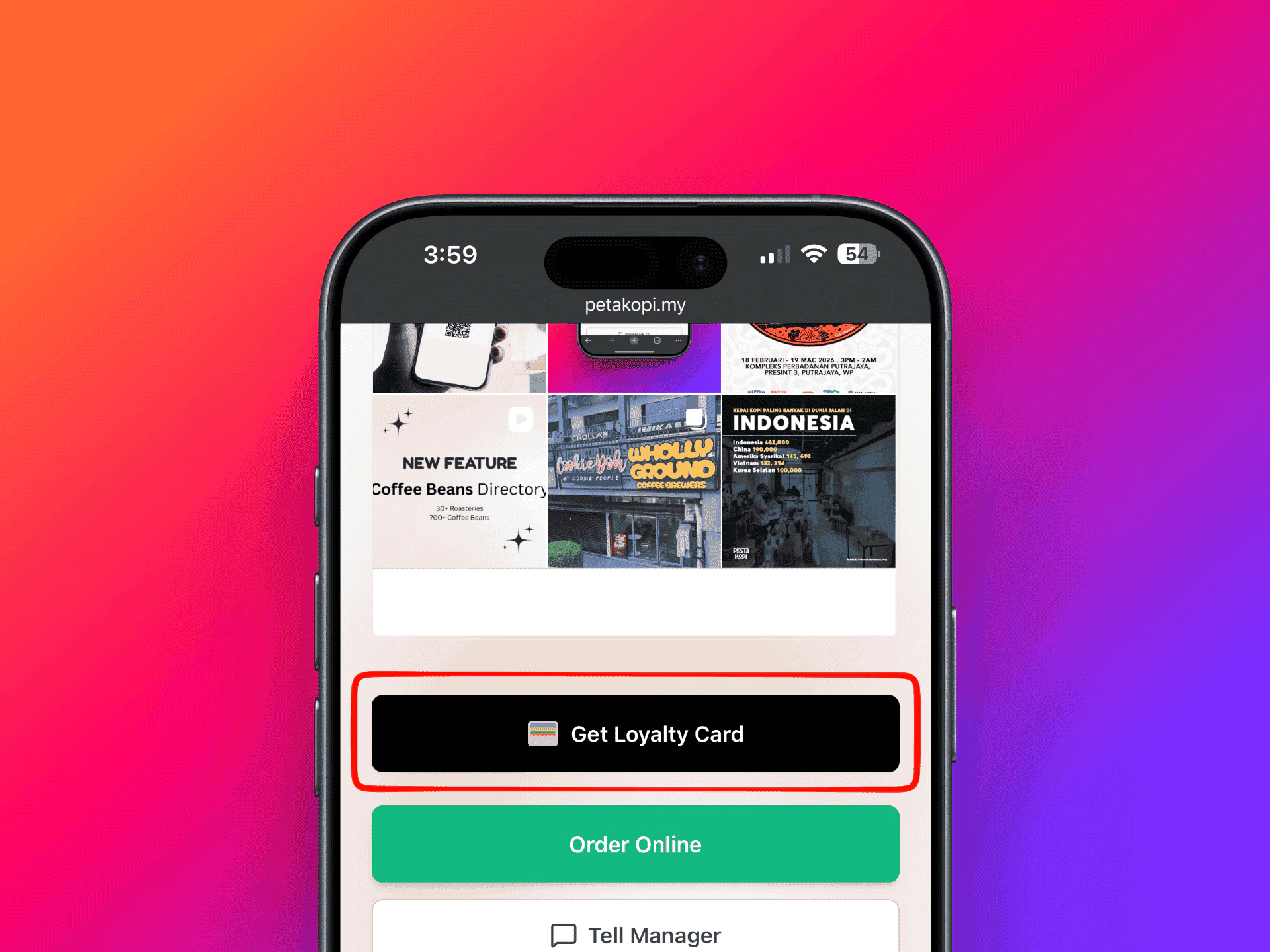 You'll need to sign in to your petakopi.my account. You can sign in with your Apple or Google account.
If the shop has multiple loyalty programs (e.g. "Coffee Card" and "Pastry Card"), select the one you want.
## Earning stamps
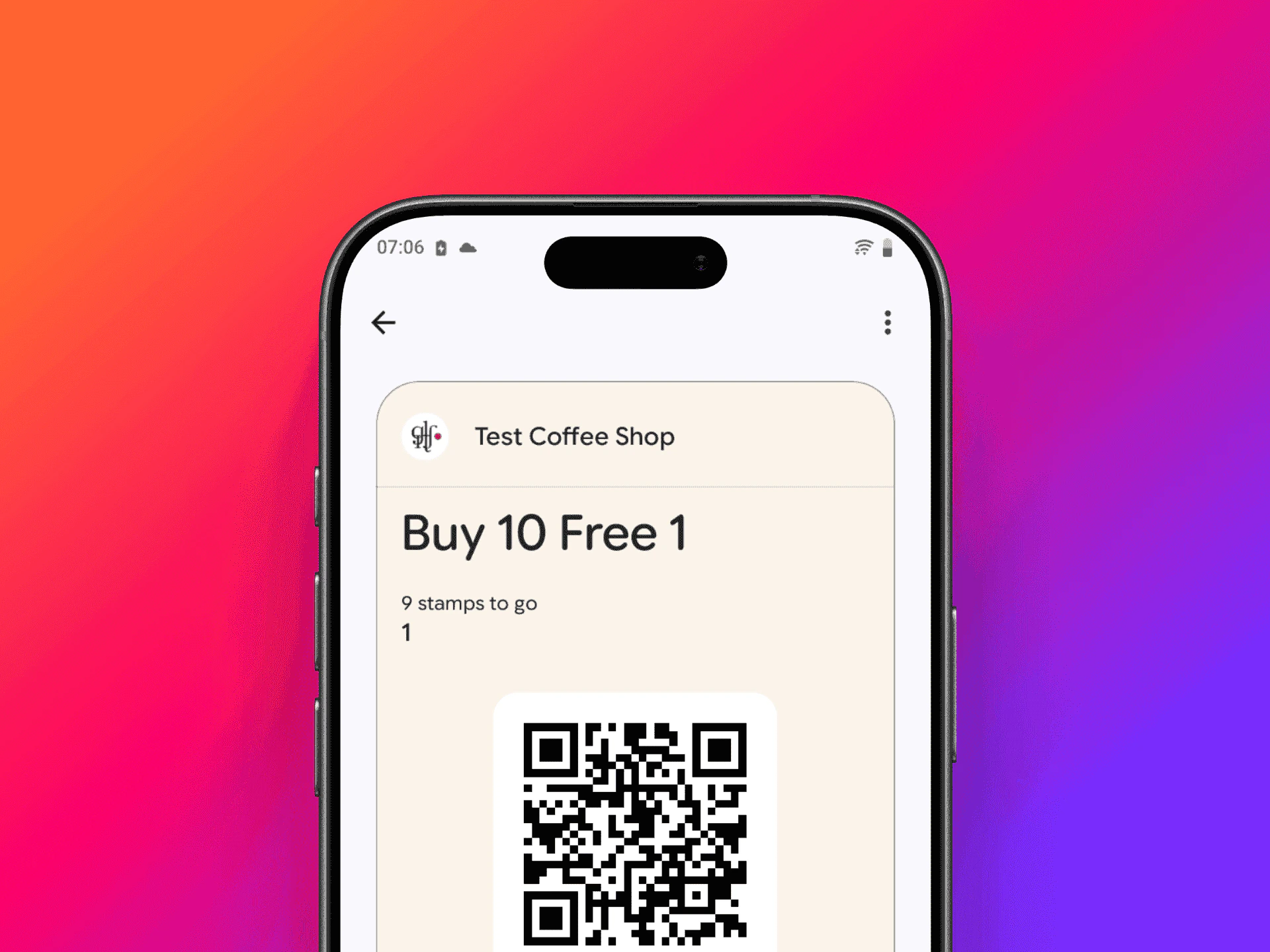
When making a purchase, show your loyalty card QR code to the shop staff. You can show it from:
* The petakopi.my website or app
* Apple Wallet or Google Wallet
The staff will scan your QR code using the petakopi.my mobile app and award your stamps.
## Redeeming rewards
When you've collected all the stamps on your card:
1. The card is automatically marked as complete
2. Show your QR code to the staff as usual
3. The staff will redeem your reward through the petakopi.my app
4. To start collecting stamps again, visit the shop's page on petakopi.my and tap **"Get Loyalty Card"** to get a new card
## Viewing your cards
You can view all your loyalty cards in two places:
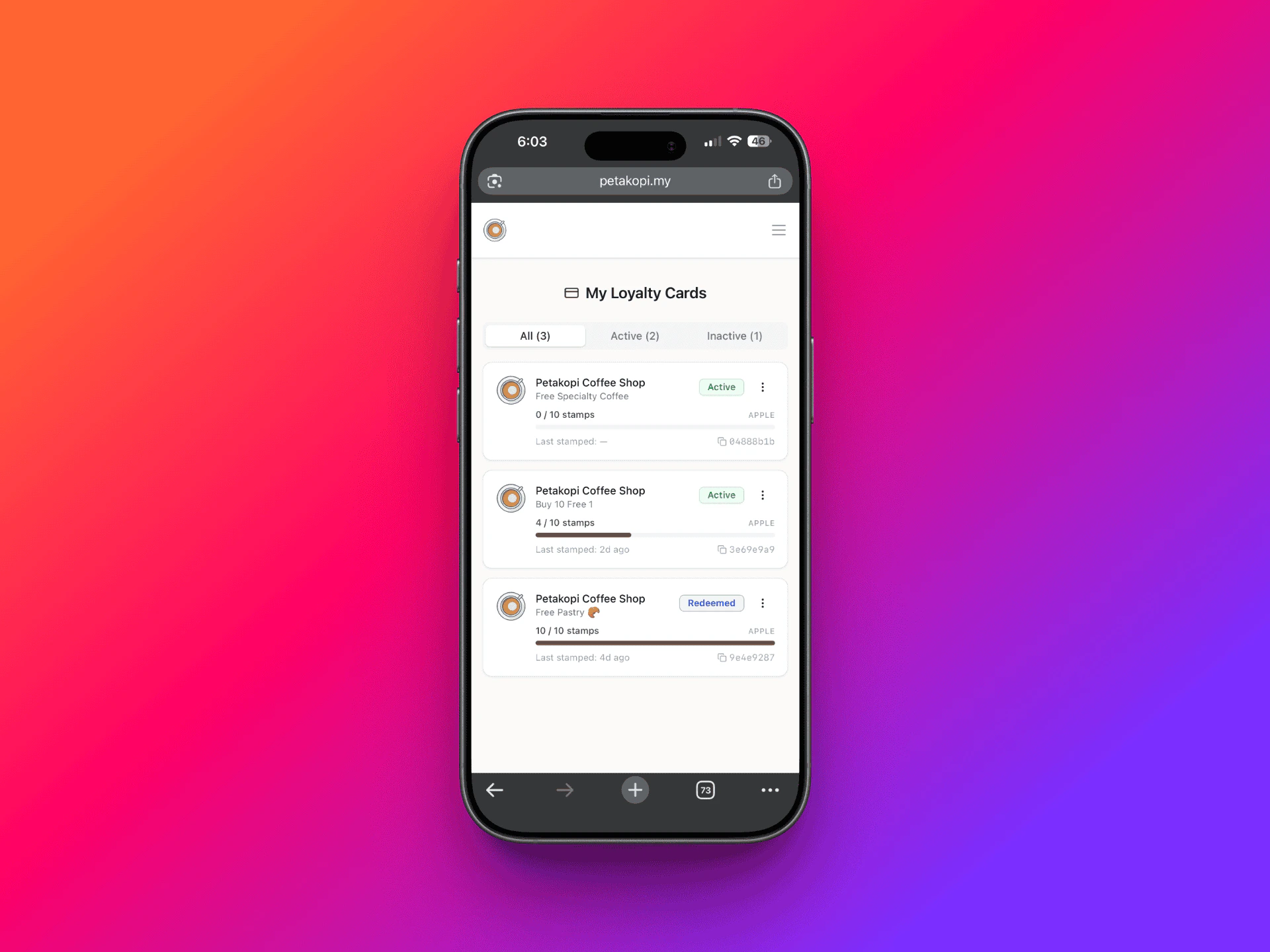
* **On the web** — Visit [My Cards ↗](https://petakopi.my/my-cards) on petakopi.my
* **On the app** — Open the petakopi.my app and tap **"My Cards"** on the Home tab
You'll need to sign in to your petakopi.my account. You can sign in with your Apple or Google account.
If the shop has multiple loyalty programs (e.g. "Coffee Card" and "Pastry Card"), select the one you want.
## Earning stamps
When making a purchase, show your loyalty card QR code to the shop staff. You can show it from:
* The petakopi.my website or app
* Apple Wallet or Google Wallet
The staff will scan your QR code using the petakopi.my mobile app and award your stamps.
## Redeeming rewards
When you've collected all the stamps on your card:
1. The card is automatically marked as complete
2. Show your QR code to the staff as usual
3. The staff will redeem your reward through the petakopi.my app
4. To start collecting stamps again, visit the shop's page on petakopi.my and tap **"Get Loyalty Card"** to get a new card
## Viewing your cards
You can view all your loyalty cards in two places:
* **On the web** — Visit [My Cards ↗](https://petakopi.my/my-cards) on petakopi.my
* **On the app** — Open the petakopi.my app and tap **"My Cards"** on the Home tab
 ## Apple Wallet & Google Wallet
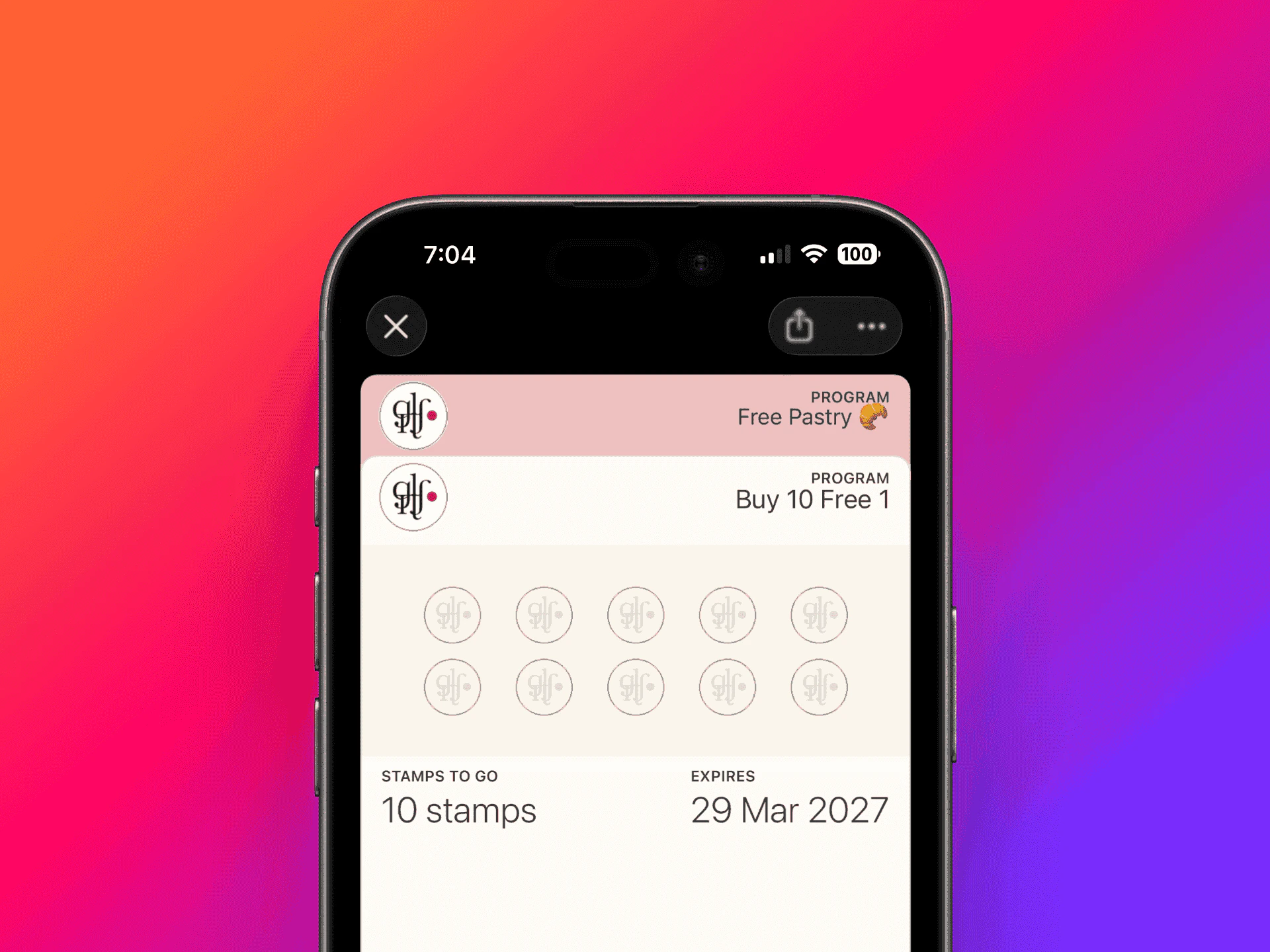
After adding a loyalty card, you can save it to **Apple Wallet** (iPhone) or **Google Wallet** (Android). Your stamp count updates in real time — you'll receive a push notification each time a stamp is added.
This means you can show your loyalty card directly from your phone's wallet without opening the petakopi.my app or website.
## Apple Wallet & Google Wallet
After adding a loyalty card, you can save it to **Apple Wallet** (iPhone) or **Google Wallet** (Android). Your stamp count updates in real time — you'll receive a push notification each time a stamp is added.
This means you can show your loyalty card directly from your phone's wallet without opening the petakopi.my app or website.