> ## Documentation Index
> Fetch the complete documentation index at: https://docs.petakopi.my/llms.txt
> Use this file to discover all available pages before exploring further.
# For Shop Owners
> How to set up and manage loyalty programs on petakopi.my
This guide covers everything you need to know about setting up and running loyalty programs for your coffee shop.
New here? Start with the [Quick Start guide](/loyalty-card/quick-start) to get your first program running in minutes.
## Setting up a loyalty program
Create and manage loyalty programs from the **Manage** menu in the petakopi.my mobile app. (See the [Quick Start guide](/loyalty-card/quick-start) for the end-to-end walkthrough.)
Open the petakopi.my app, tap **Home**, then **"Manage"**, pick your shop from the list, and tap **Loyalty**.
Tap **"New Program"** and fill in the details:
* **Program name** — e.g. "Buy 10 Get 1 Free"
* **Stamps required** — How many stamps to complete the card (1–10)
* **Expiration days** — How long cards stay valid (default: 365 days)
* **Terms & conditions** — What the reward is and any rules
* **Active** — Toggle on to allow customers to enroll
The form includes a **Card Appearance** section where you can customize wallet card colors. The defaults work well — you can always come back to customize later. See [Customizing card appearance](#customizing-card-appearance) below.
Scroll down and tap **"Create Program"**. Your program is now live and customers can start adding loyalty cards from your shop's page.
You can run **multiple programs at the same time** — for example, a coffee card and a pastry card with different stamp counts and rewards.
## Editing a loyalty program
You can edit your loyalty program from the Manage panel. However, once customers have active cards, some fields are locked to protect their progress:
| Field | Editable? | Notes |
| ------------------ | --------- | ---------------------------------------------------------------------------------------- |
| Program name | Yes | Updates Apple Wallet passes immediately; Google Wallet updates on next stamp or new card |
| Terms & conditions | Yes | Updates appear on wallet passes after the next stamp |
| Expiration days | Yes | Only affects newly issued cards, not existing ones |
| Active status | Yes | Only controls whether new customers can enroll |
| Stamps required | No | Changing this would unfairly affect customers' progress toward their reward |
To change **stamps required**, you'll need to wait until all active cards have been redeemed or expired, or create a new program.
## Customizing card appearance
You can customize how your loyalty card looks in Apple Wallet and Google Wallet. This is available when creating a new program or editing an existing one.
Customize the following colors with a live wallet preview:
* **Background color** — Main card background color
* **Text color** (Apple only) — Text color on the card
* **Stamp area color** (Apple only) — Color behind the stamp grid
Google Wallet text color is automatically calculated for contrast.
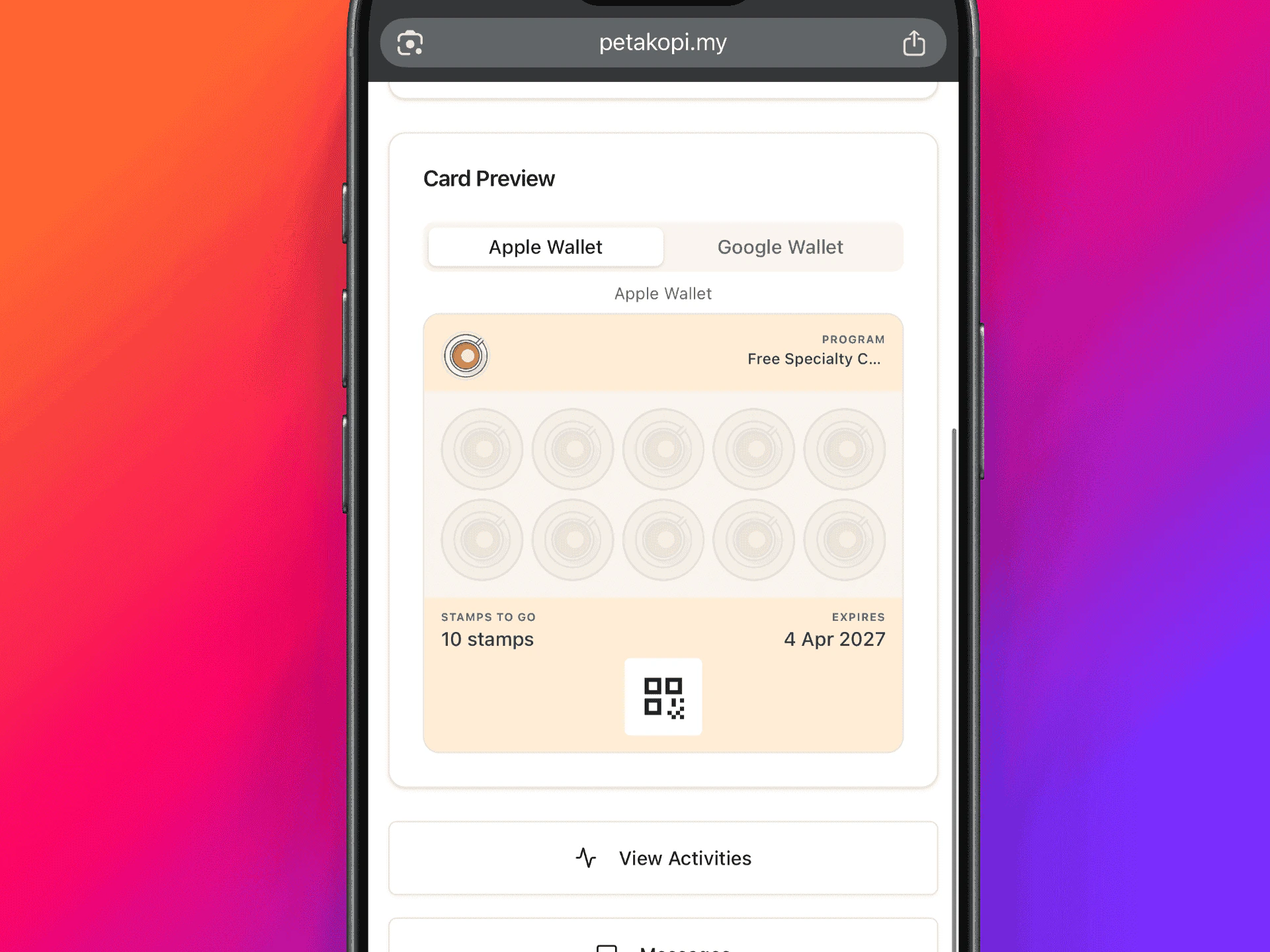 Apple Wallet cards update immediately after saving. Google Wallet cards reflect changes on the next stamp or when a new card is created.
## Scanning stamps
Scan customer loyalty cards using the petakopi.my mobile app.
Open the petakopi.my app and tap the **Scan** card on the Home tab.
Point your camera at the customer's loyalty card QR code. The customer can show their QR code from:
* The petakopi.my website or app on their phone
* Apple Wallet or Google Wallet
Select the number of stamps to award and tap **"Add Stamps"**. You'll see a confirmation once the stamps have been added.
Apple Wallet cards update immediately after saving. Google Wallet cards reflect changes on the next stamp or when a new card is created.
## Scanning stamps
Scan customer loyalty cards using the petakopi.my mobile app.
Open the petakopi.my app and tap the **Scan** card on the Home tab.
Point your camera at the customer's loyalty card QR code. The customer can show their QR code from:
* The petakopi.my website or app on their phone
* Apple Wallet or Google Wallet
Select the number of stamps to award and tap **"Add Stamps"**. You'll see a confirmation once the stamps have been added.
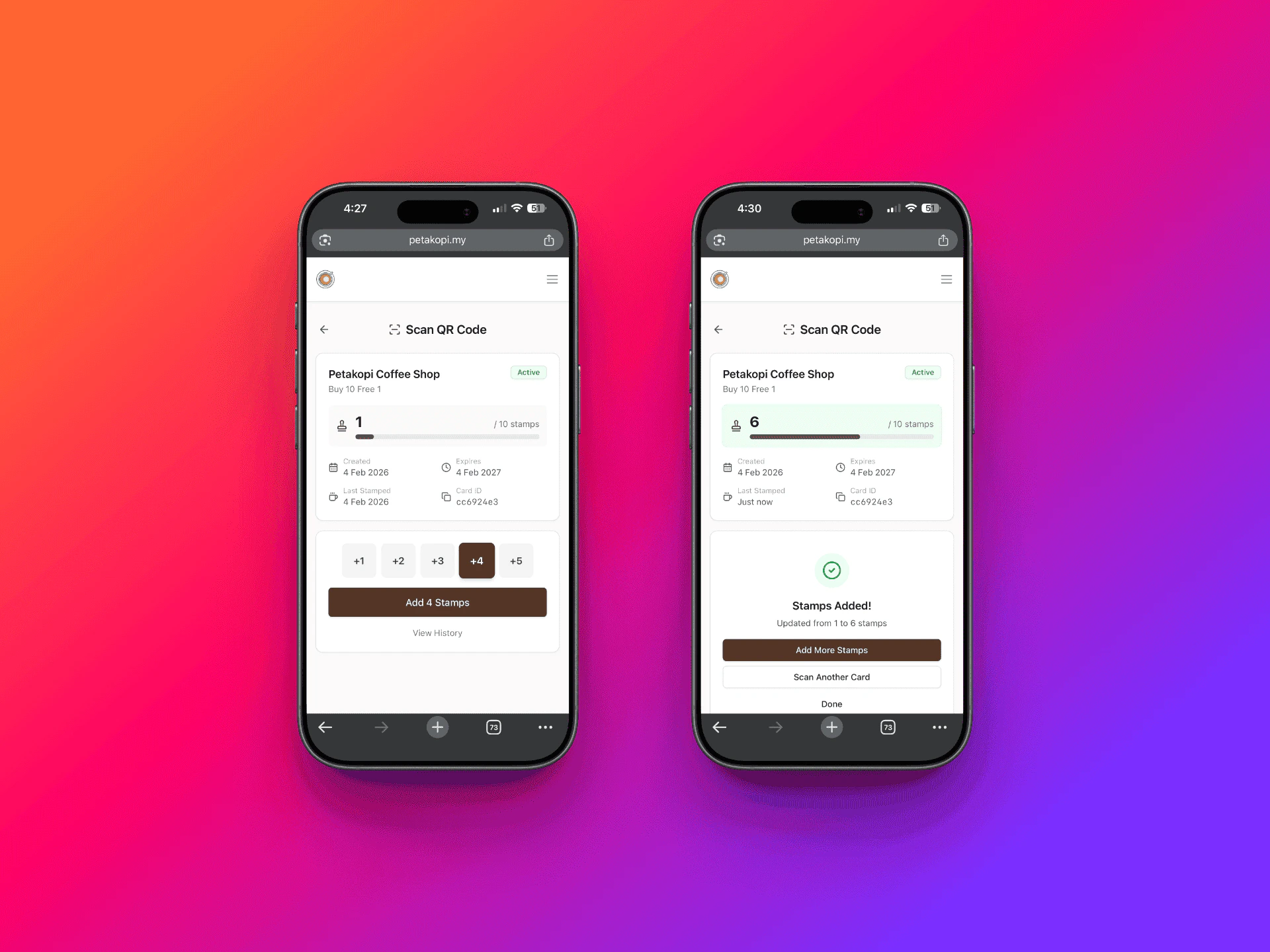 When all stamps are collected, the card will show a **"Redeem Reward"** button. Tap it to redeem the customer's reward.
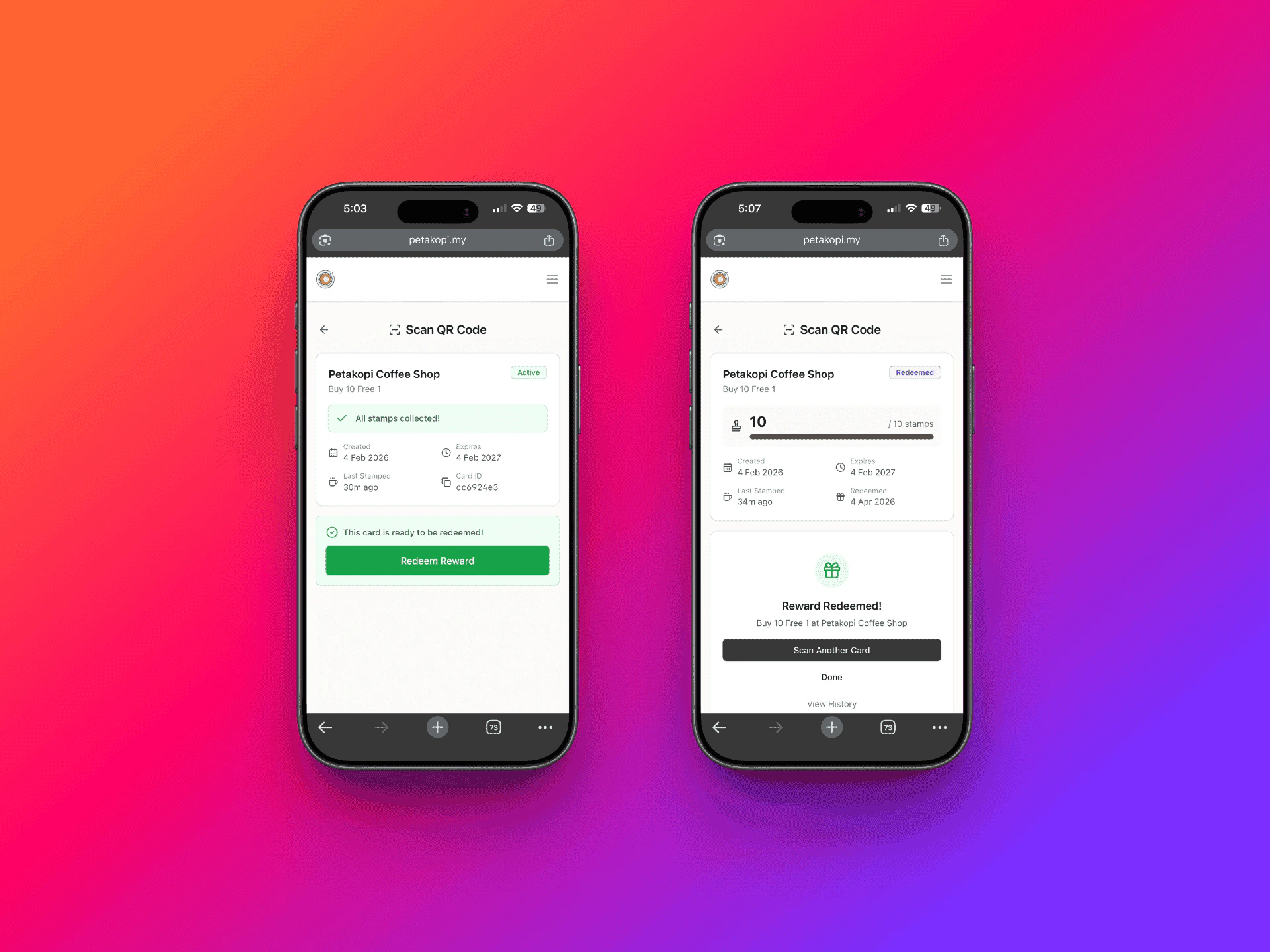 After redeeming, the customer needs to visit your shop's page on petakopi.my and tap **"Get Loyalty Card"** again to get a new card and start collecting stamps.
## Managing cards
From the Manage panel, you can:
* **View enrolled customers** — See who has added your loyalty card
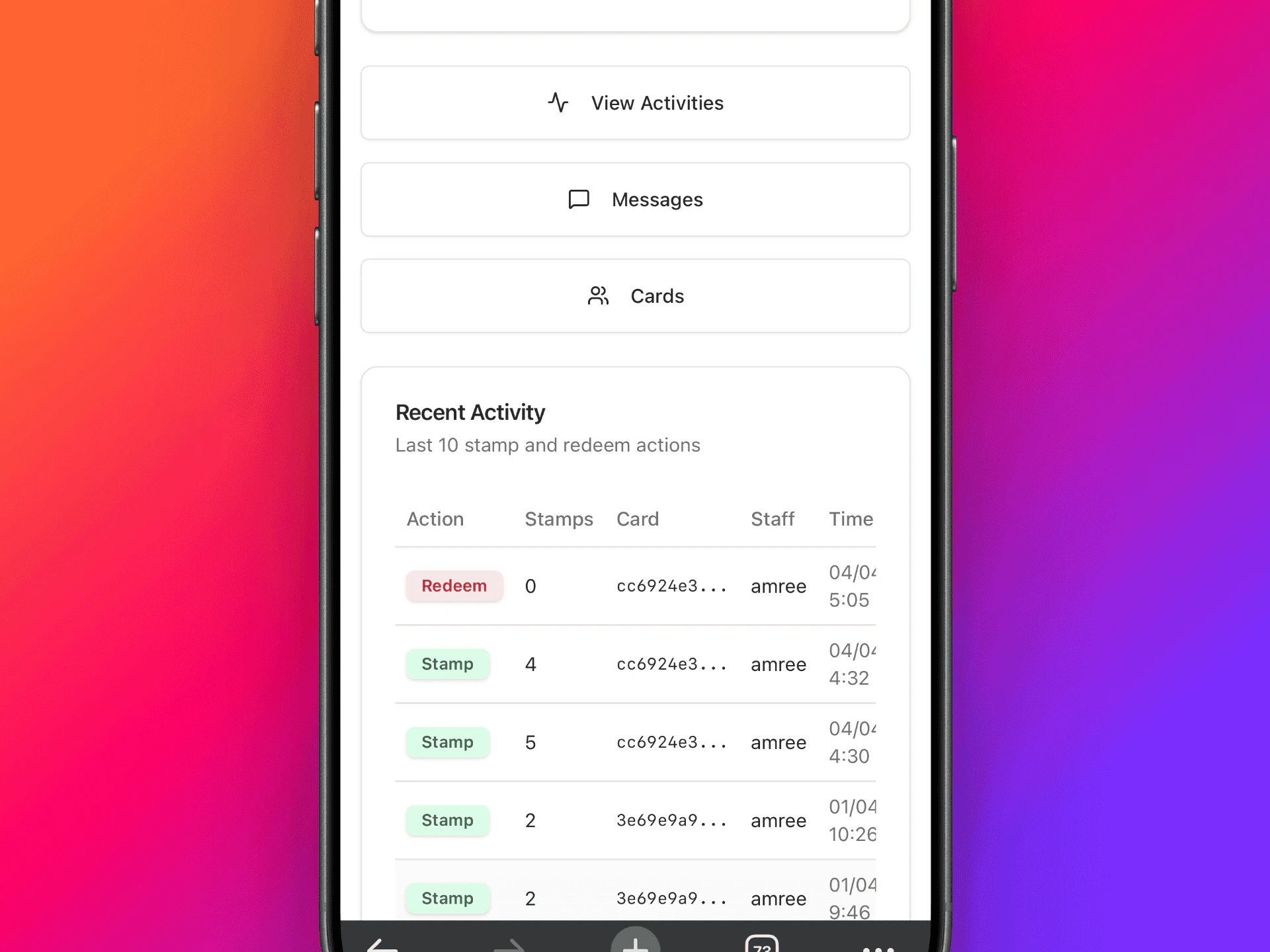
* **Activity log** — Track all stamp and redemption activity
* **View individual cards** — See the stamp count for each customer
After redeeming, the customer needs to visit your shop's page on petakopi.my and tap **"Get Loyalty Card"** again to get a new card and start collecting stamps.
## Managing cards
From the Manage panel, you can:
* **View enrolled customers** — See who has added your loyalty card
* **Activity log** — Track all stamp and redemption activity
* **View individual cards** — See the stamp count for each customer
 ## Messaging loyalty card holders
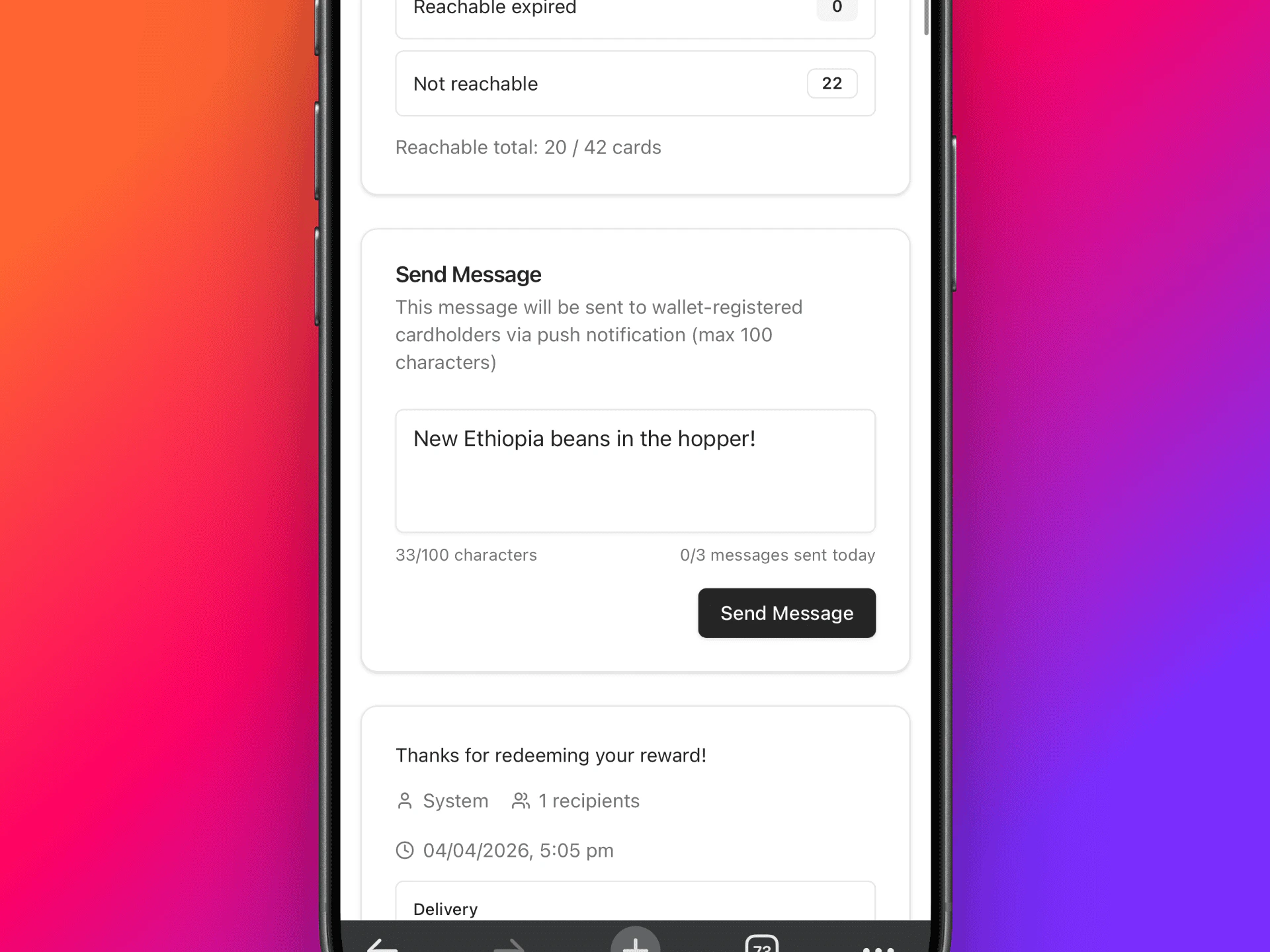
You can send messages to customers who hold your loyalty cards. This is useful for announcing promotions, new menu items, or special events.
Messages are sent as notifications to your loyalty card holders through the petakopi.my app and website.
## Messaging loyalty card holders
You can send messages to customers who hold your loyalty cards. This is useful for announcing promotions, new menu items, or special events.
Messages are sent as notifications to your loyalty card holders through the petakopi.my app and website.
 ## Printable QR templates
Display a QR code at your counter so customers can scan to get the loyalty card. See the [QR template page](/loyalty-card/qr-template) to pick a design and request a print-ready file for your shop.
## Printable QR templates
Display a QR code at your counter so customers can scan to get the loyalty card. See the [QR template page](/loyalty-card/qr-template) to pick a design and request a print-ready file for your shop.