> ## Documentation Index
> Fetch the complete documentation index at: https://docs.petakopi.my/llms.txt
> Use this file to discover all available pages before exploring further.
# Quick Start (EN)
> Get your loyalty program up and running in minutes using the petakopi.my mobile app
A quick guide for shop owners starting a loyalty program — using the petakopi.my mobile app.
Don't have the app yet? [Download here](/getting-started/download-app). The Bahasa Melayu version is available at [Quick Start (BM)](/loyalty-card/quick-start-bm).
**Before you start, make sure:**
* Your shop is listed on petakopi.my
* You're verified as the owner of that shop
Without both, the **"Manage"** menu won't appear in the app. Haven't claimed your shop yet? See the [claim guide](/getting-started/claim-ownership) or [WhatsApp us](/getting-started/contact).
## Try the full workflow
We recommend running through the full flow once — both as the owner and as a customer (use two phones or two accounts so you experience both sides):
* Create the loyalty program (as owner)
* Get the loyalty card (as owner and customer)
* Award stamps (as owner and customer)
* Redeem the reward (as owner and customer)
* Get a fresh card (as owner and customer)
**Customers don't need to download the app.** They can get and use the card directly from a web browser on their phone. We designed the flow this way deliberately — so customers don't have to wait at the counter to install anything. A faster process means the queue keeps moving, which is good for business.
## 1. Create the program
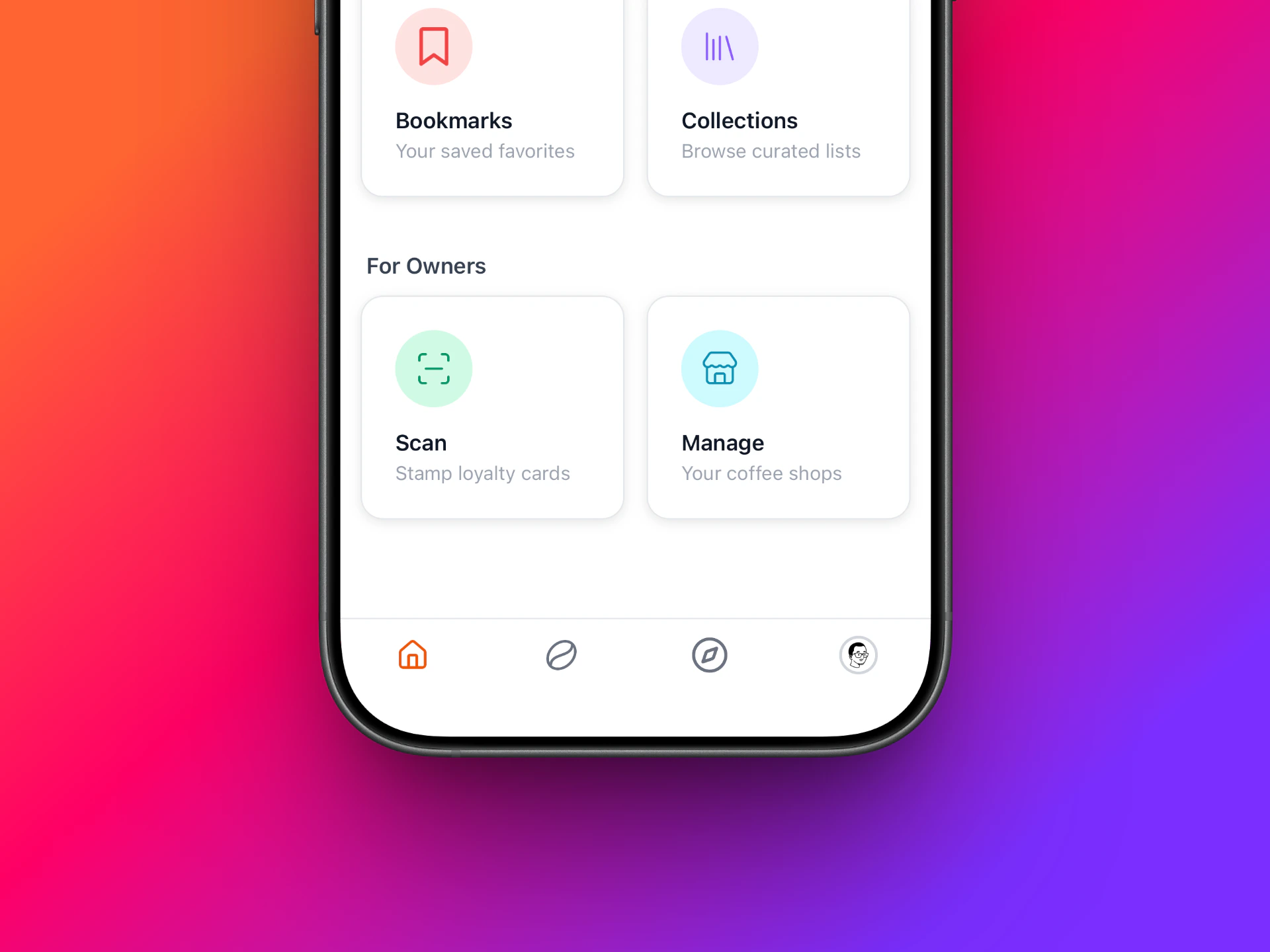 Tap **Home** at the bottom left.
You'll see a **"Manage"** menu here.
After tapping, your shop's name will appear in the list. Tap your shop.
Then tap **Loyalty**.
Next, tap **"Create Program"** at the top right.
Tap **Home** at the bottom left.
You'll see a **"Manage"** menu here.
After tapping, your shop's name will appear in the list. Tap your shop.
Then tap **Loyalty**.
Next, tap **"Create Program"** at the top right.
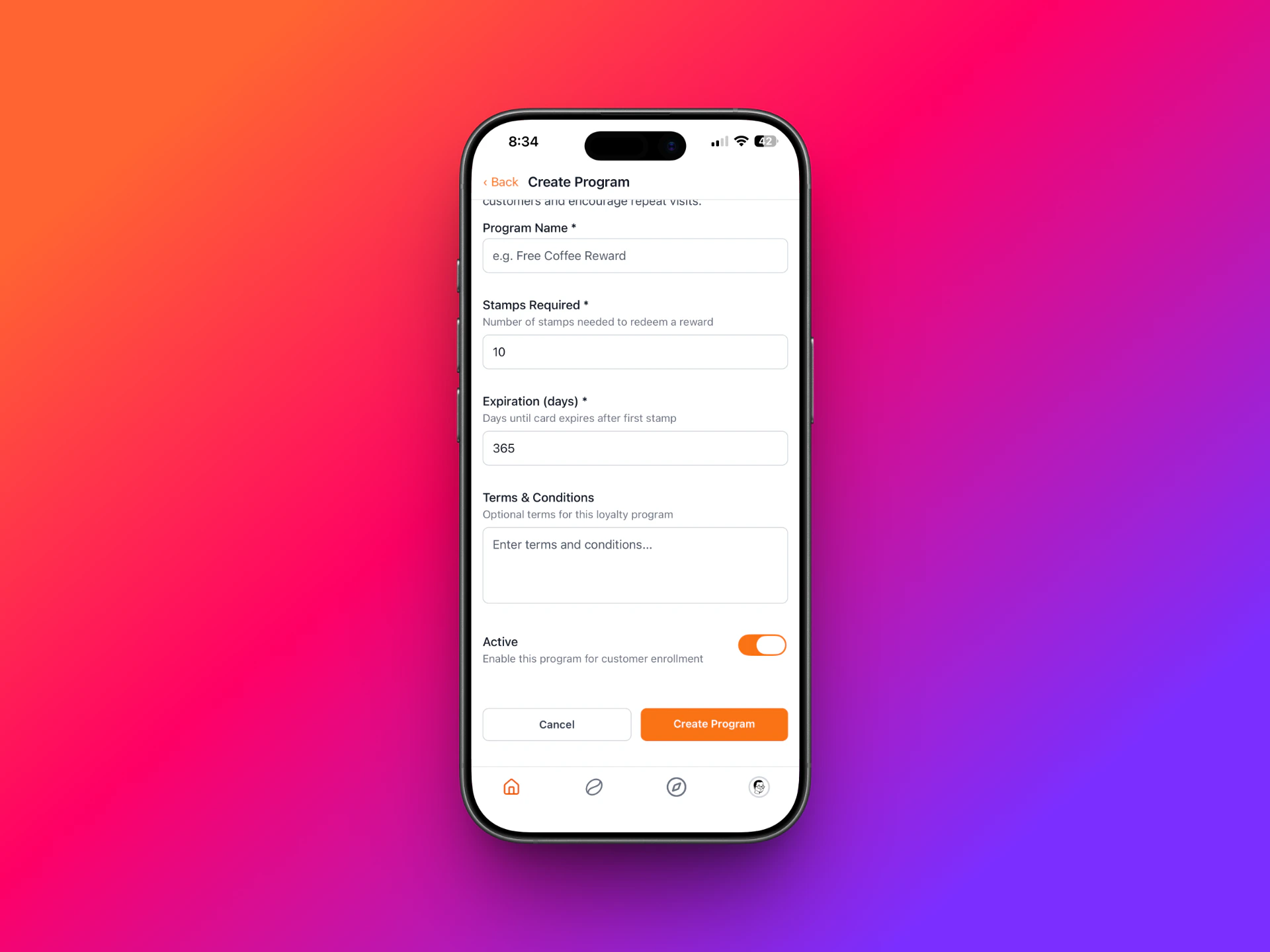
 Fill in the program details. To test, keep it simple — we just want to try things out.
Just entering the program name is enough. The other fields don't need to be filled in for a test run.
If you're unsure about anything, [WhatsApp us](/getting-started/contact).
Tap the **"Create Program"** button at the bottom of the form. Done — your program is live.
Fill in the program details. To test, keep it simple — we just want to try things out.
Just entering the program name is enough. The other fields don't need to be filled in for a test run.
If you're unsure about anything, [WhatsApp us](/getting-started/contact).
Tap the **"Create Program"** button at the bottom of the form. Done — your program is live.
 ## 2. Customers get the card
Customers open `https://petakopi.my/your-shop-name` in a web browser.
There's a black **"Get Loyalty Card"** button.
Tap it — the card is downloaded into **Apple Wallet** or **Google Wallet**. The customer needs to sign in first.
## 2. Customers get the card
Customers open `https://petakopi.my/your-shop-name` in a web browser.
There's a black **"Get Loyalty Card"** button.
Tap it — the card is downloaded into **Apple Wallet** or **Google Wallet**. The customer needs to sign in first.

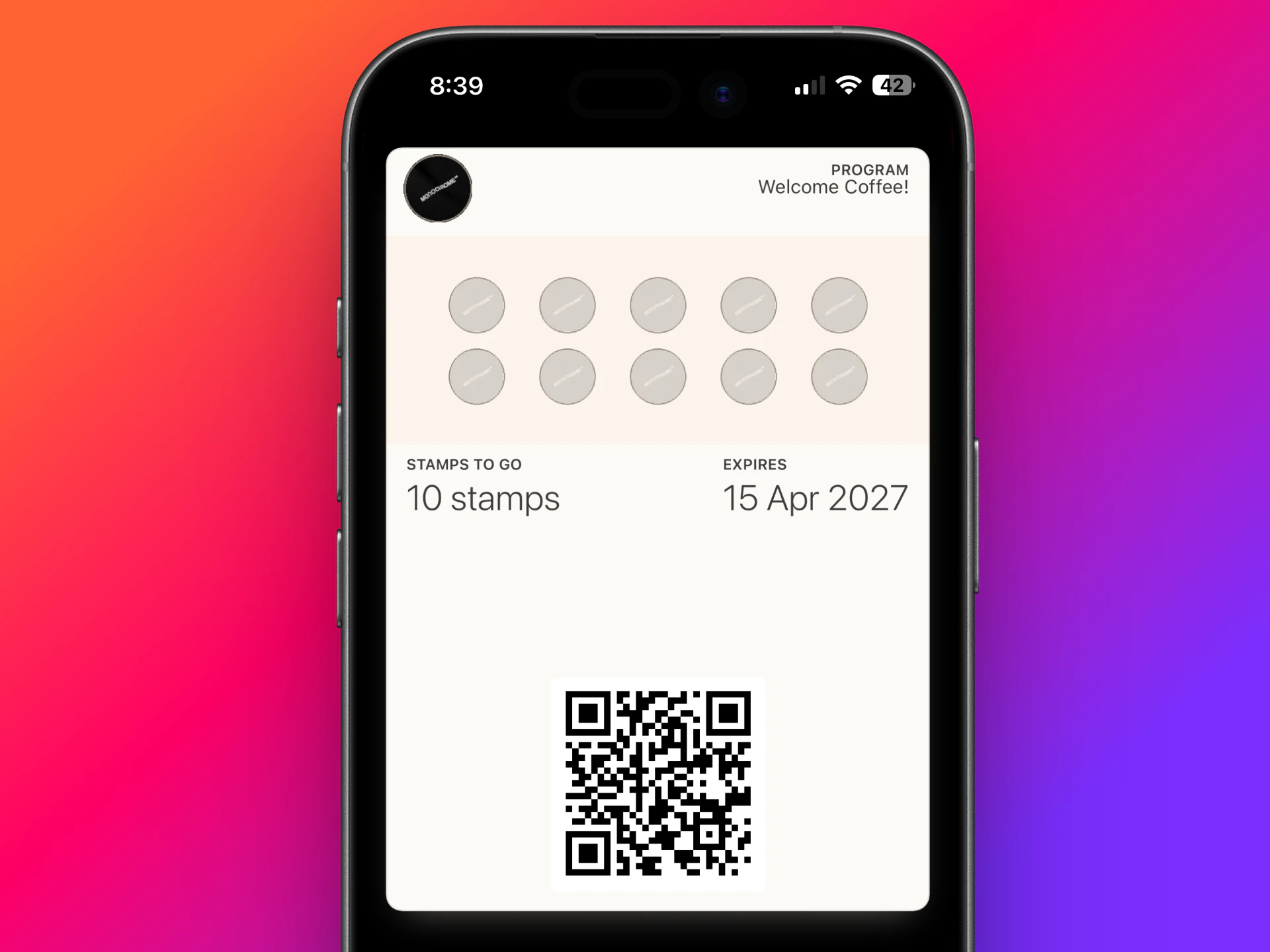 Done — the card is in the customer's wallet. Now we can scan and stamp.
## 3. Award stamps
Done — the card is in the customer's wallet. Now we can scan and stamp.
## 3. Award stamps
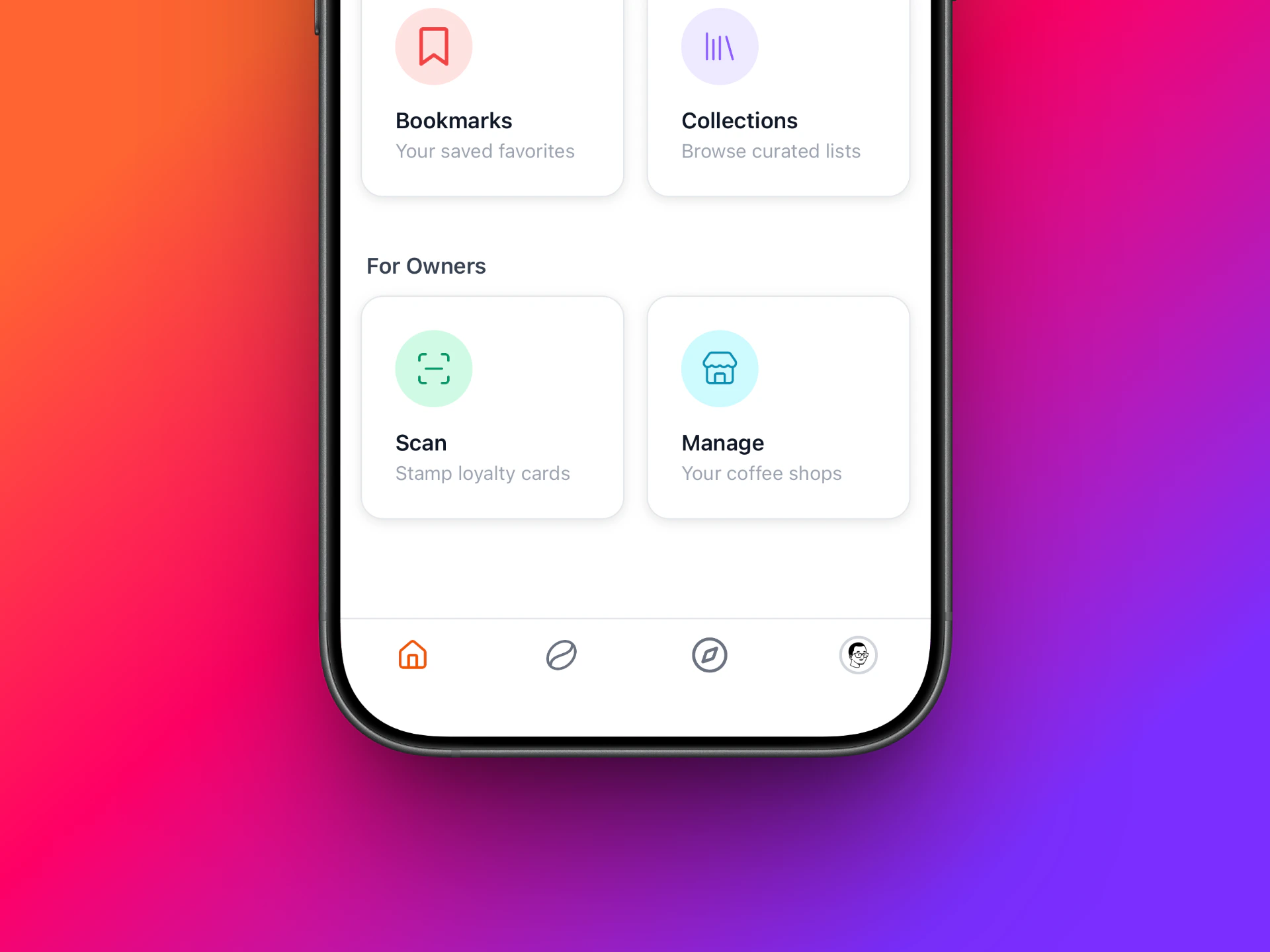 Ask the customer to open Apple Wallet or Google Wallet, then open your shop's loyalty card. The QR code will be displayed.
As the owner, open the app and tap the **"Scan"** menu (also under the Home tab).
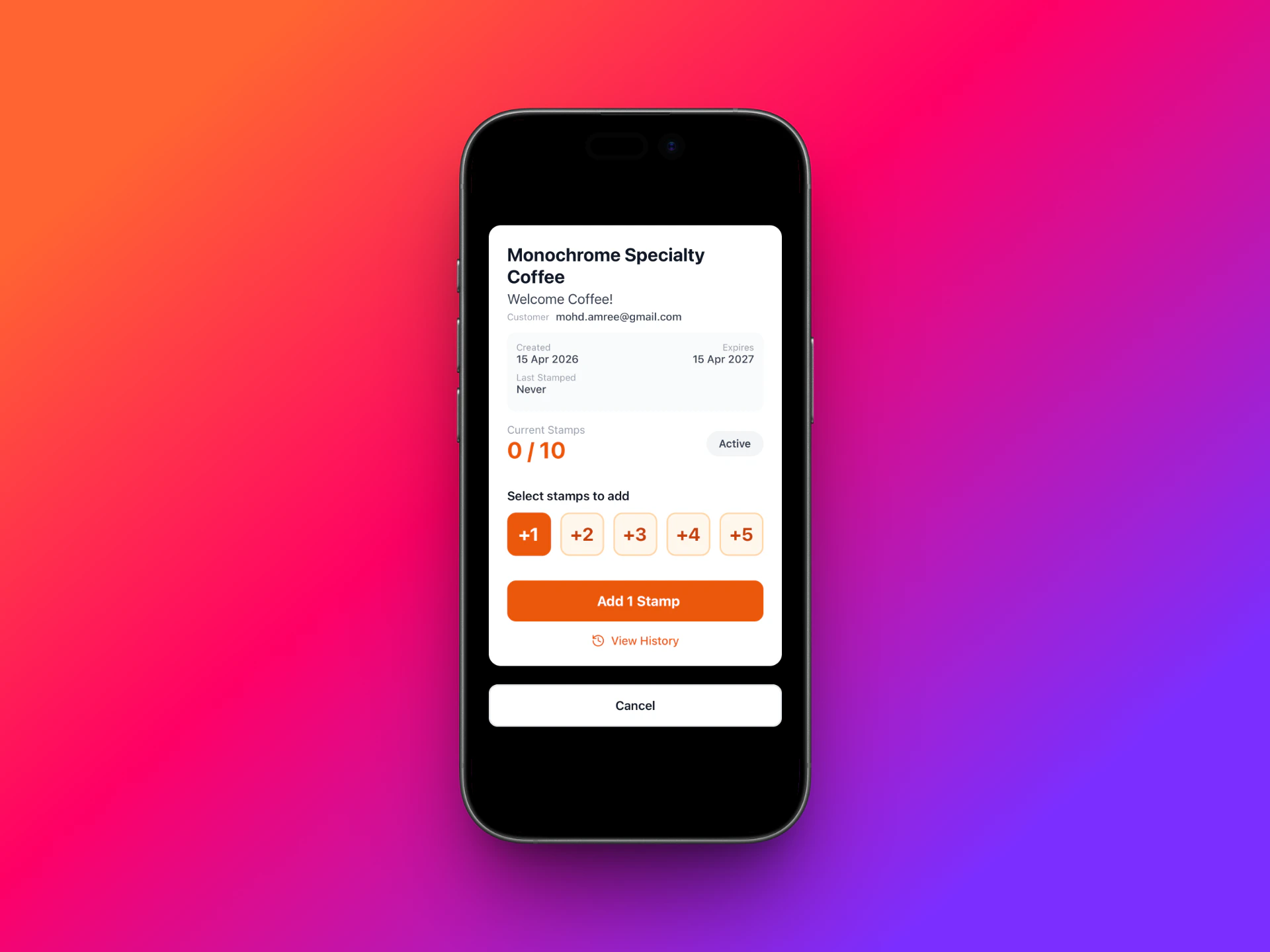
Scan the customer's QR code, then choose how many stamps to award.
For testing, give 5 stamps first, then another 5 until you reach 10. This makes sure the whole flow works smoothly before you use it with real customers.
Each time a stamp is added, the customer's card in their wallet updates automatically.
Ask the customer to open Apple Wallet or Google Wallet, then open your shop's loyalty card. The QR code will be displayed.
As the owner, open the app and tap the **"Scan"** menu (also under the Home tab).
Scan the customer's QR code, then choose how many stamps to award.
For testing, give 5 stamps first, then another 5 until you reach 10. This makes sure the whole flow works smoothly before you use it with real customers.
Each time a stamp is added, the customer's card in their wallet updates automatically.
 ## 4. Redeem the reward
Once the customer has collected enough stamps (10 by default, or whatever you set), they can redeem the reward.
Same flow as awarding stamps — scan the customer's QR code again to mark the reward as redeemed.
After redemption, that card can no longer be used.
To rejoin the program, the customer taps **"Get Loyalty Card"** again from your shop's page to get a fresh card.
## 4. Redeem the reward
Once the customer has collected enough stamps (10 by default, or whatever you set), they can redeem the reward.
Same flow as awarding stamps — scan the customer's QR code again to mark the reward as redeemed.
After redemption, that card can no longer be used.
To rejoin the program, the customer taps **"Get Loyalty Card"** again from your shop's page to get a fresh card.
 ## Promo material
Display a printable QR code at your counter so customers can scan and enroll without typing your shop's URL. See the [QR template page](/loyalty-card/qr-template) to pick a design and request a print-ready file for your shop.
## What's next
Full guide on managing programs, customizing card appearance, and messaging customers.
How customers collect stamps, view cards, and redeem rewards.
## Promo material
Display a printable QR code at your counter so customers can scan and enroll without typing your shop's URL. See the [QR template page](/loyalty-card/qr-template) to pick a design and request a print-ready file for your shop.
## What's next
Full guide on managing programs, customizing card appearance, and messaging customers.
How customers collect stamps, view cards, and redeem rewards.