

Don’t have the app yet? Download here. The Bahasa Melayu version is available at Quick Start (BM).
Try the full workflow
We recommend running through the full flow once — both as the owner and as a customer (use two phones or two accounts so you experience both sides):- Create the loyalty program (as owner)
- Get the loyalty card (as owner and customer)
- Award stamps (as owner and customer)
- Redeem the reward (as owner and customer)
- Get a fresh card (as owner and customer)
Customers don’t need to download the app. They can get and use the card directly from a web browser on their phone. We designed the flow this way deliberately — so customers don’t have to wait at the counter to install anything. A faster process means the queue keeps moving, which is good for business.
1. Create the program
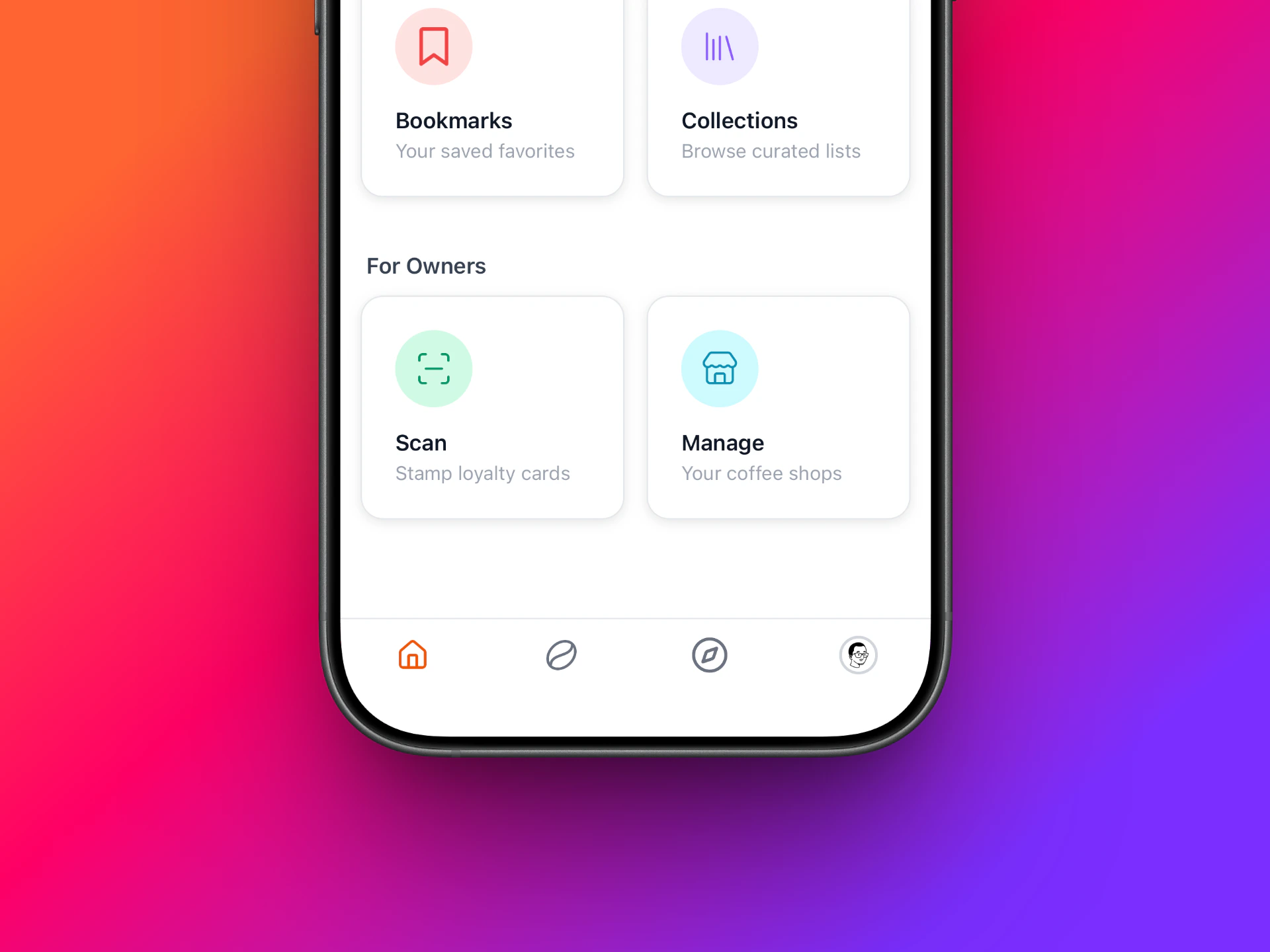
Home tab with the Manage menu
1
Open Home
Tap Home at the bottom left.
2
Go to Manage
You’ll see a “Manage” menu here.
3
Pick your shop
After tapping, your shop’s name will appear in the list. Tap your shop.
4
Open Loyalty
Then tap Loyalty.
5
Tap Create Program
Next, tap “Create Program” at the top right.

Loyalty programs list with the Create Program button
1
Fill in the details
Fill in the program details. To test, keep it simple — we just want to try things out.Just entering the program name is enough. The other fields don’t need to be filled in for a test run.
2
Confirm
Tap the “Create Program” button at the bottom of the form. Done — your program is live.
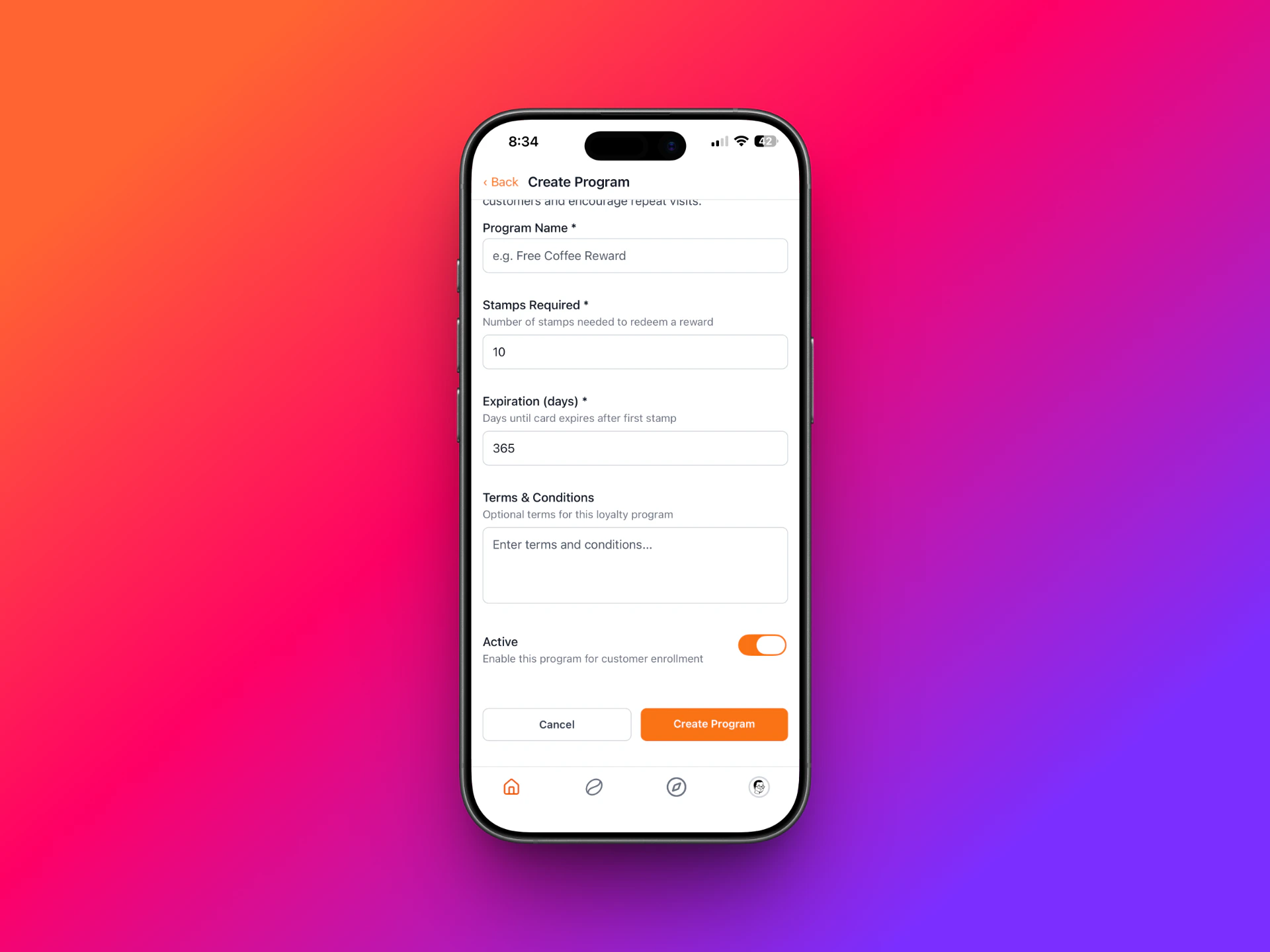
Create Program form
2. Customers get the card
1
Open the shop page
Customers open
https://petakopi.my/your-shop-name in a web browser.2
Tap Get Loyalty Card
There’s a black “Get Loyalty Card” button.
3
Add to wallet
Tap it — the card is downloaded into Apple Wallet or Google Wallet. The customer needs to sign in first.

Get Loyalty Card button on the shop page
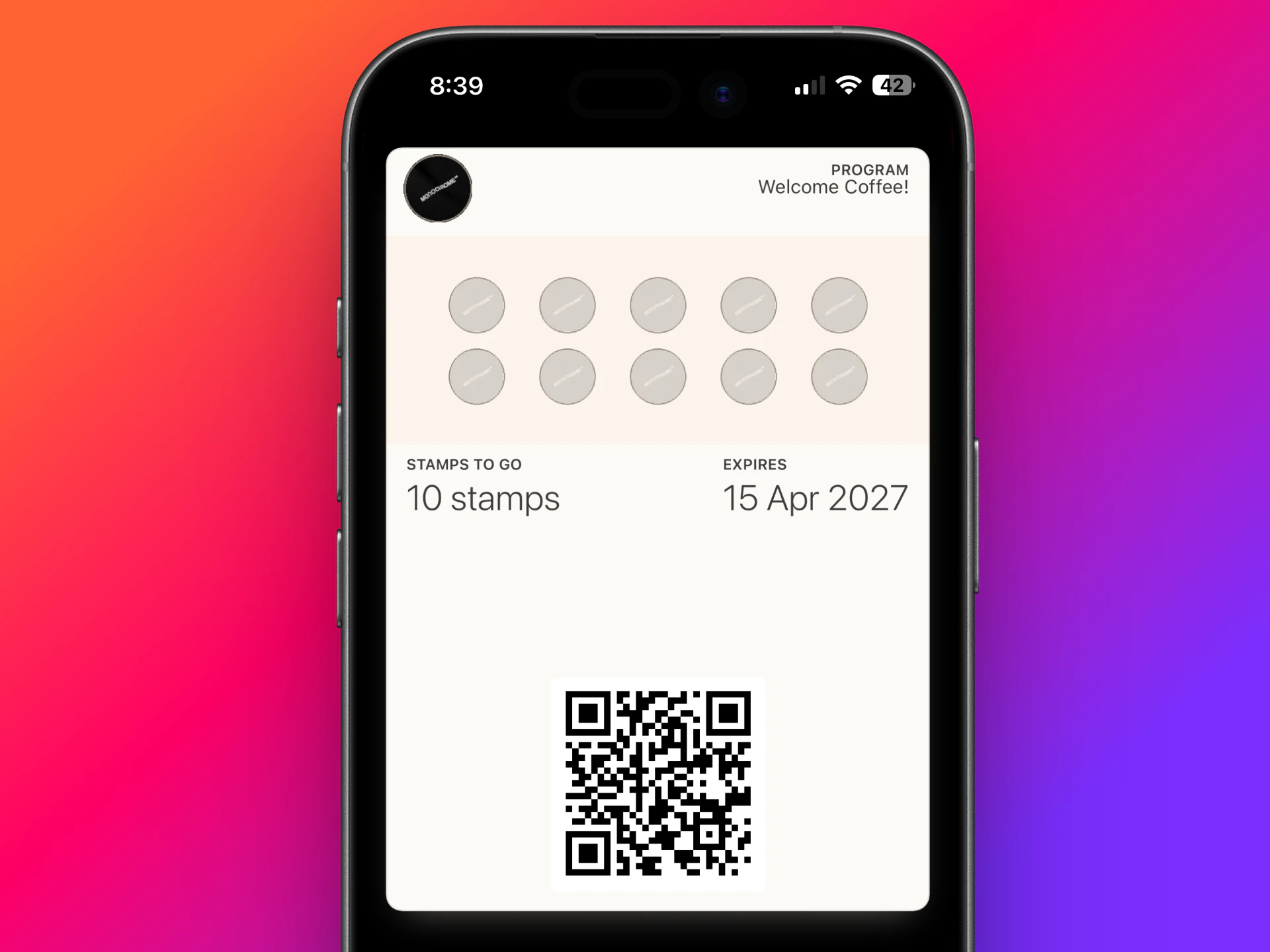
Loyalty card in Apple Wallet / Google Wallet
3. Award stamps
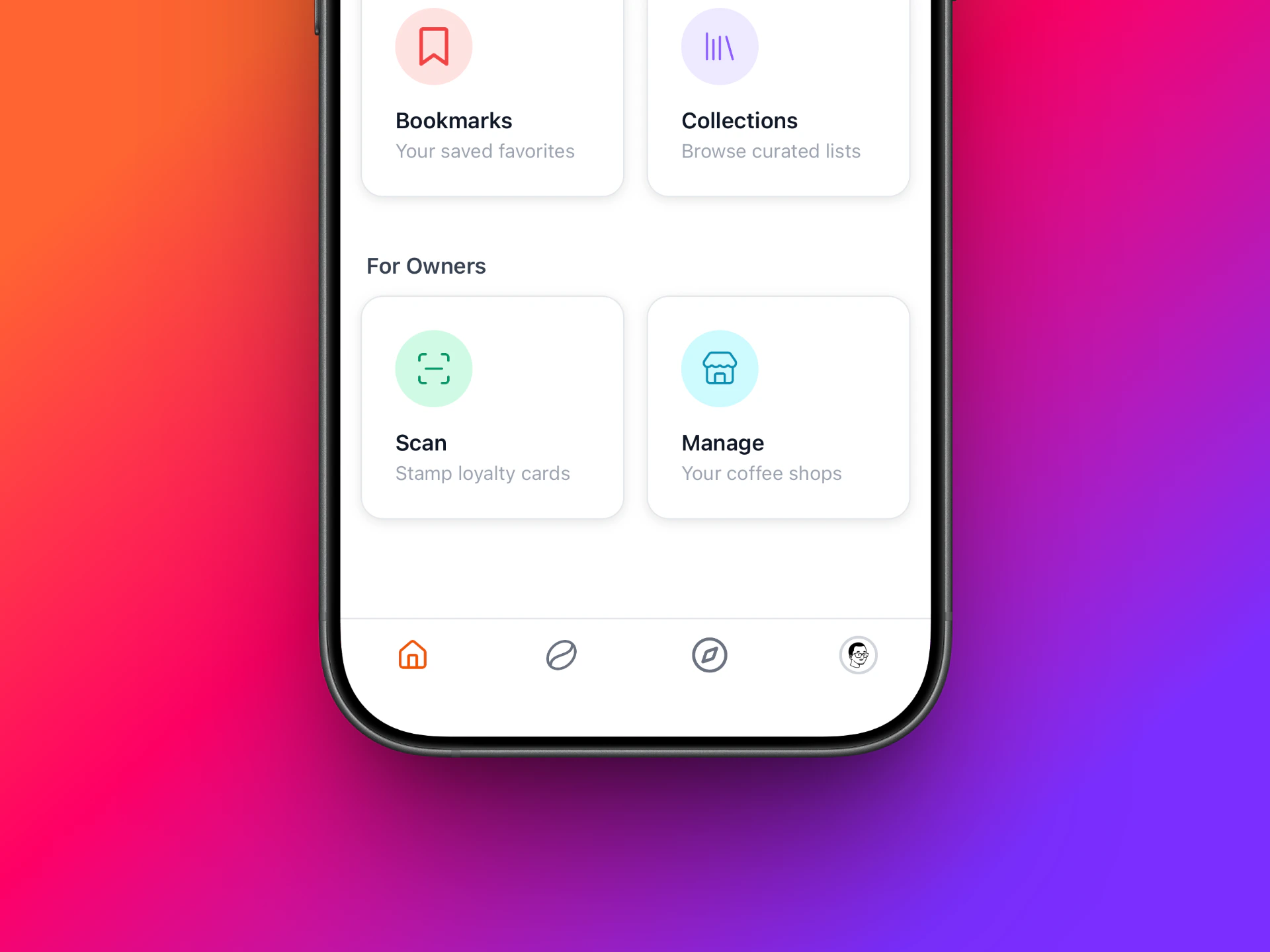
Scan menu on the Home tab
1
Customer opens the card
Ask the customer to open Apple Wallet or Google Wallet, then open your shop’s loyalty card. The QR code will be displayed.
2
Open Scan in the app
As the owner, open the app and tap the “Scan” menu (also under the Home tab).
3
Scan the QR
Scan the customer’s QR code, then choose how many stamps to award.
4
Confirm
Each time a stamp is added, the customer’s card in their wallet updates automatically.
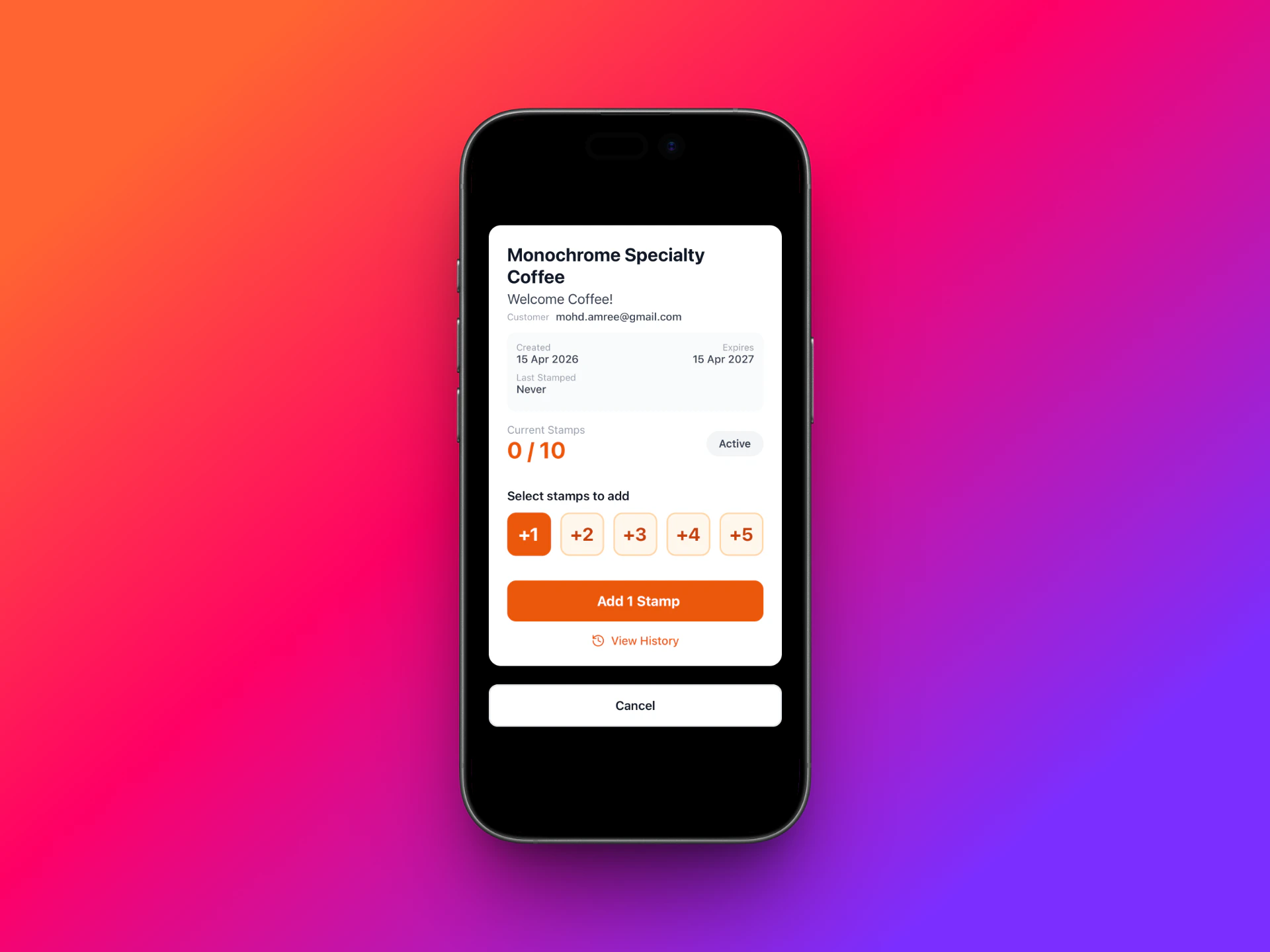
Pick the number of stamps and confirm
4. Redeem the reward
1
Card is full
Once the customer has collected enough stamps (10 by default, or whatever you set), they can redeem the reward.
2
Scan again
Same flow as awarding stamps — scan the customer’s QR code again to mark the reward as redeemed.
3
Card retires
After redemption, that card can no longer be used.
4
Fresh card
To rejoin the program, the customer taps “Get Loyalty Card” again from your shop’s page to get a fresh card.

Redeem the reward and finish the card
Promo material
Display a printable QR code at your counter so customers can scan and enroll without typing your shop’s URL. See the QR template page to pick a design and request a print-ready file for your shop.What’s next
For Shop Owners
Full guide on managing programs, customizing card appearance, and messaging customers.
For Customers
How customers collect stamps, view cards, and redeem rewards.